Ever stared at your iPhone contact card and thought, “Is that really me?” If your contact card feels more like a relic from the past than a reflection of your fabulous self, it’s time for a makeover. Updating your contact card isn’t just about looking good; it’s about making sure everyone knows who you are—especially when they’re trying to reach you!
Understanding Your Contact Card
A contact card on an iPhone serves as a digital representation of an individual’s identifying information. It includes details such as name, phone number, email address, and profile picture, all of which aid in managing communication.
What Is a Contact Card?
A contact card contains essential data about a person. This data can include multiple phone numbers, email addresses, websites, and social media accounts. Users access contact cards through the Contacts app, which provides a seamless way to organize and manage personal and professional information. Each entry also allows for additional notes, making it easier to remember key details about a contact.
Importance of Updating Your Contact Card
Updating a contact card ensures accuracy in personal information. An up-to-date card prevents miscommunication and helps maintain professional relationships. Contact information, such as changes in phone numbers or new job titles, directly impacts how others reach or recognize an individual. Keeping this information current establishes reliability and enhances overall communication efficiency.
How to Change Your Contact Card on iPhone
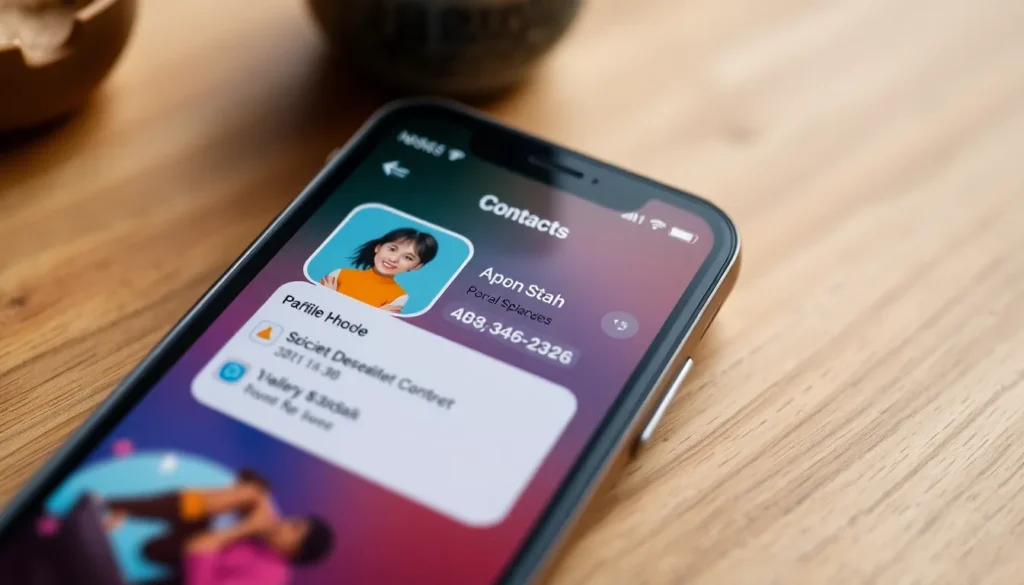
Updating your contact card on an iPhone ensures accuracy and helps others connect with you. Follow the steps below to make changes easily.
Accessing Your Contact Information
Open the Contacts app from your iPhone’s home screen. Tap on your contact card, typically listed under “My Card.” Viewing your contact information is straightforward and shows all pertinent details in one place. Make sure you check for accuracy, as any outdated information affects communication.
Editing Your Contact Details
Tap on the ‘Edit’ button located in the upper right corner of your contact card. Modify information such as your name, phone numbers, email addresses, and profile picture. Adding a new phone number or email requires tapping the appropriate fields. Change details as needed, and once you’re done, select ‘Done’ to save the updates. Regularly editing this information helps in maintaining effective communication.
Additional Tips for Managing Contacts
Keeping contact information updated enhances communication efficiency. Utilizing the following tips improves overall contact management.
Synchronizing Contacts Across Devices
Syncing contacts across devices ensures consistency. Users can enable iCloud for effortless updates. Once activated, any changes made on one device will automatically reflect on others. This seamless integration helps prevent discrepancies. To confirm synchronization, users can access the iCloud settings on their devices. Frequent synchronization minimizes missing information and keeps contacts organized.
Backup Options for Your Contacts
Backing up contacts protects vital information. Users can choose various backup methods, such as using iCloud or third-party apps. iCloud automatically saves contact details in the cloud, making recovery straightforward. Alternatively, exporting contacts as a vCard file provides another layer of security. Regular backups ensure important details remain safe. Users enjoy peace of mind knowing their contacts are protected from potential data loss.
Common Issues and Solutions
Updating a contact card on an iPhone can lead to a few common issues. Solutions for these problems often require simple troubleshooting steps.
Troubleshooting Changes Not Appearing
Users may sometimes find that changes to their contact card don’t reflect immediately. Restarting the iPhone often resolves this issue, allowing the system to refresh and recognize modifications. Checking the iCloud settings ensures that contacts sync correctly; if it’s turned off, enabling it can activate synchronization. Additionally, updating the iPhone’s software may fix any bugs that hinder the display of changes. If issues persist, logging out and back into iCloud may also prompt the system to sync contacts properly.
Restoring Previous Contact Information
Restoration of previous contact information becomes necessary if unwanted changes occur. Users can navigate to the Contacts app and select the “Groups” button to access specific contact lists. If they have backed up contacts via iCloud, restoring from the backup is an option. This process typically involves turning on the iCloud toggle for Contacts, which reverts to the last saved version. Furthermore, exporting contacts before making significant changes provides an extra layer of security, ensuring that information can be recovered if needed.
Updating an iPhone contact card is a straightforward yet essential task. Keeping this information current not only helps others reach out effectively but also reflects professionalism. Regular edits ensure that personal and professional relationships thrive without miscommunication.
Utilizing features like iCloud for synchronization and backing up contacts adds an extra layer of security. With the step-by-step guide provided, users can easily navigate the process and maintain an organized contact list.
By prioritizing the accuracy of their contact card, individuals can enhance their connectivity and ensure they’re always represented accurately in the digital space.